
Access-a-Clipboard
Copy it once, never lose it again. Access-a-Clipboard is a low vision, screen reader, and keyboard accessible clipboard and snippet manager for Chrome — save text, links, images, and formatted content, then get any of it back instantly, copied or pasted directly with a simple shortcut code.
Get it now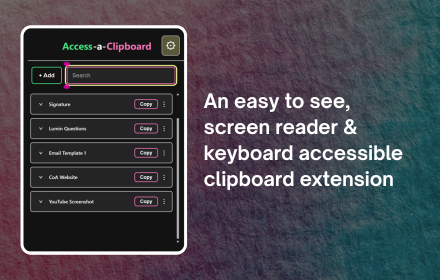
Your Saved Entries
See everything you've saved at a glance, each with a one-click Copy button.
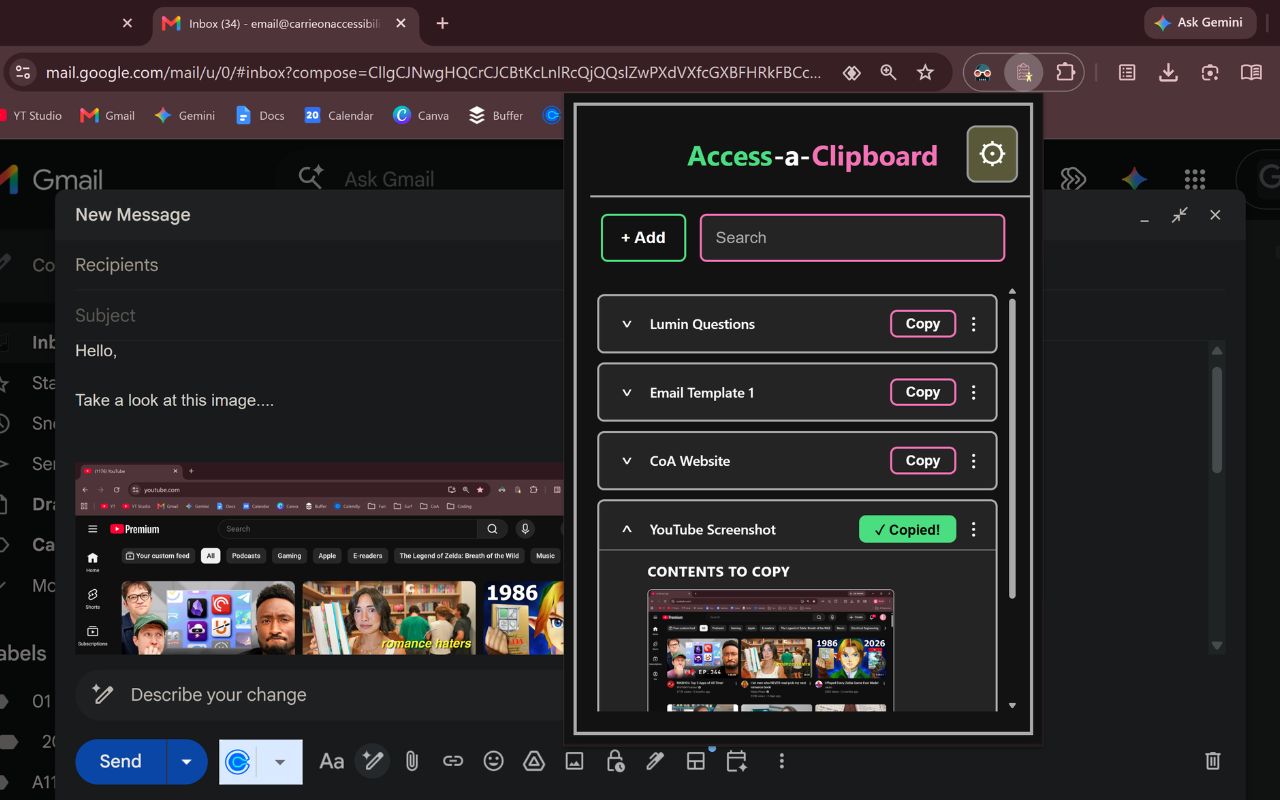
Copy From Anywhere
Open your saved entries — whether it's text or an image — right over Gmail, docs, or any tab, and copy what you need.
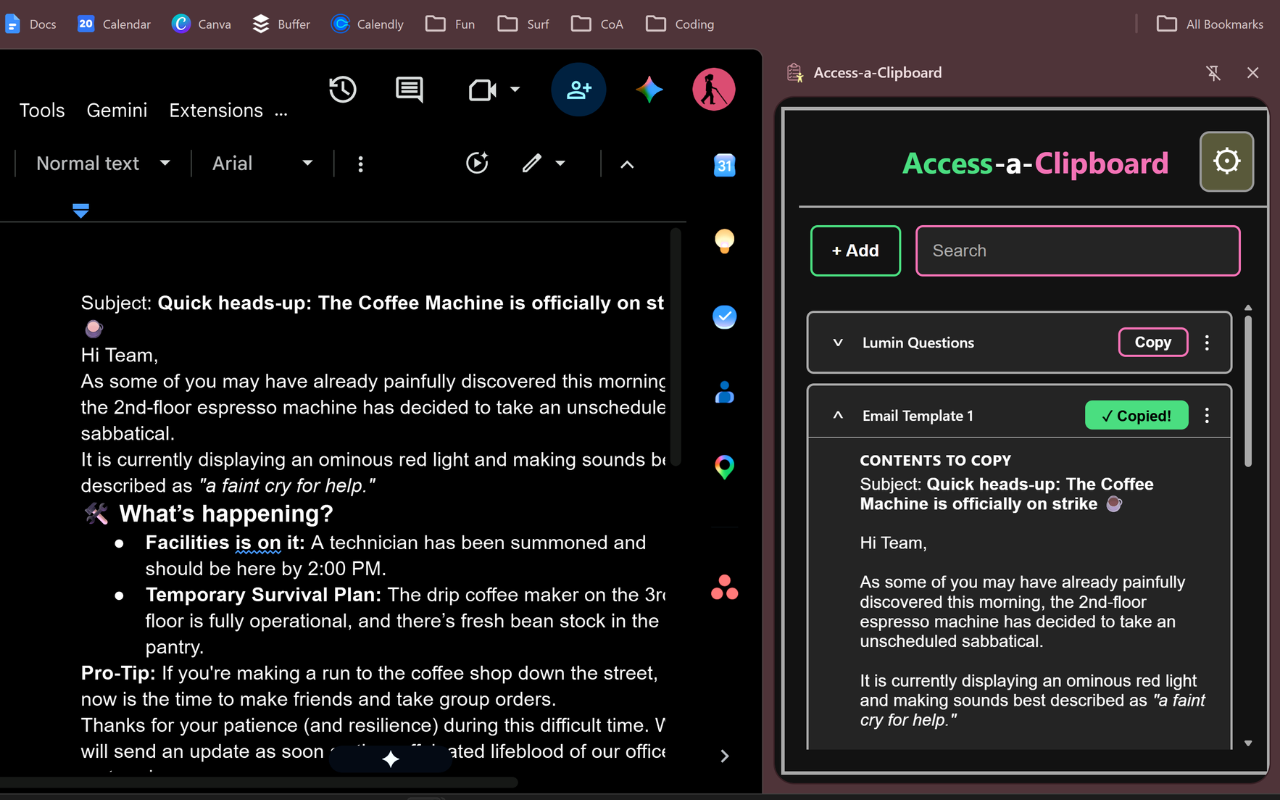
Stays Open As You Work
Use the side panel view to keep your entries open while you work in another tab.
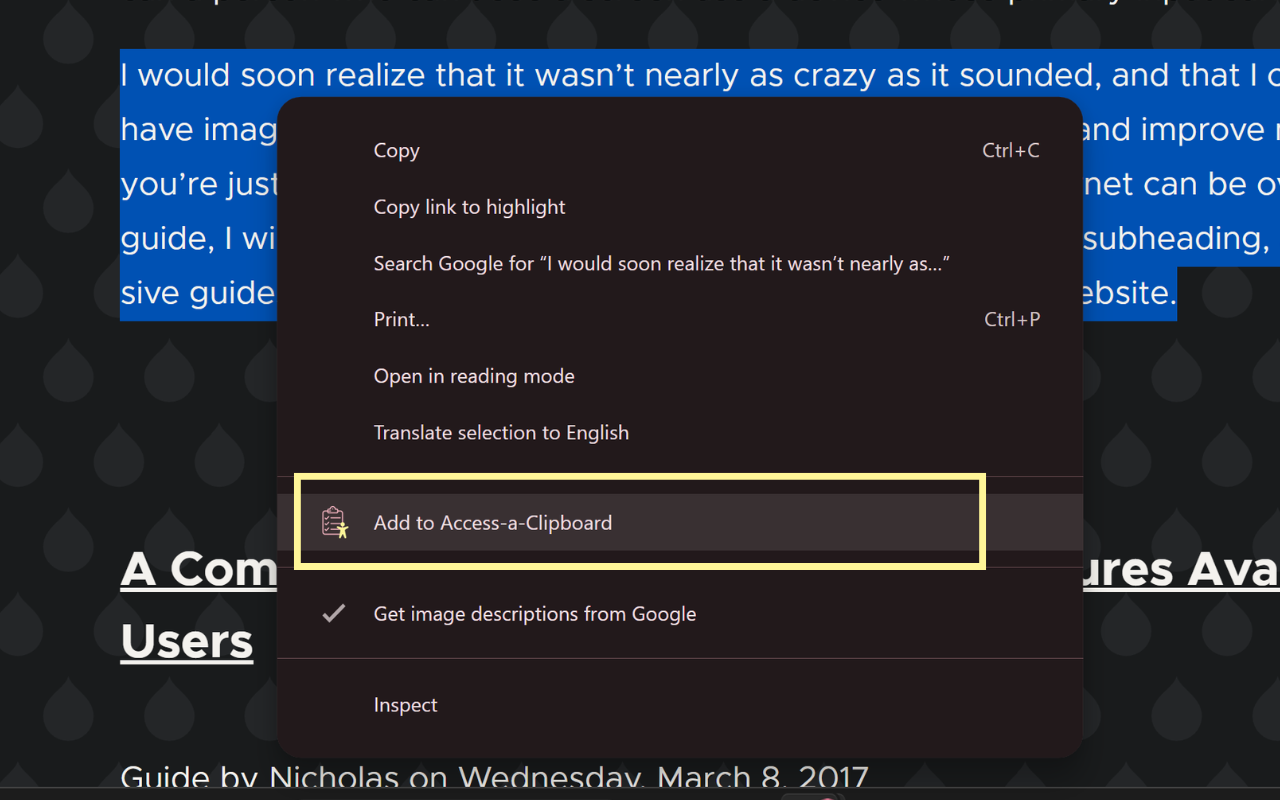
Quick Add
Select text on any page, right-click, and save it instantly — no need to open the extension first.
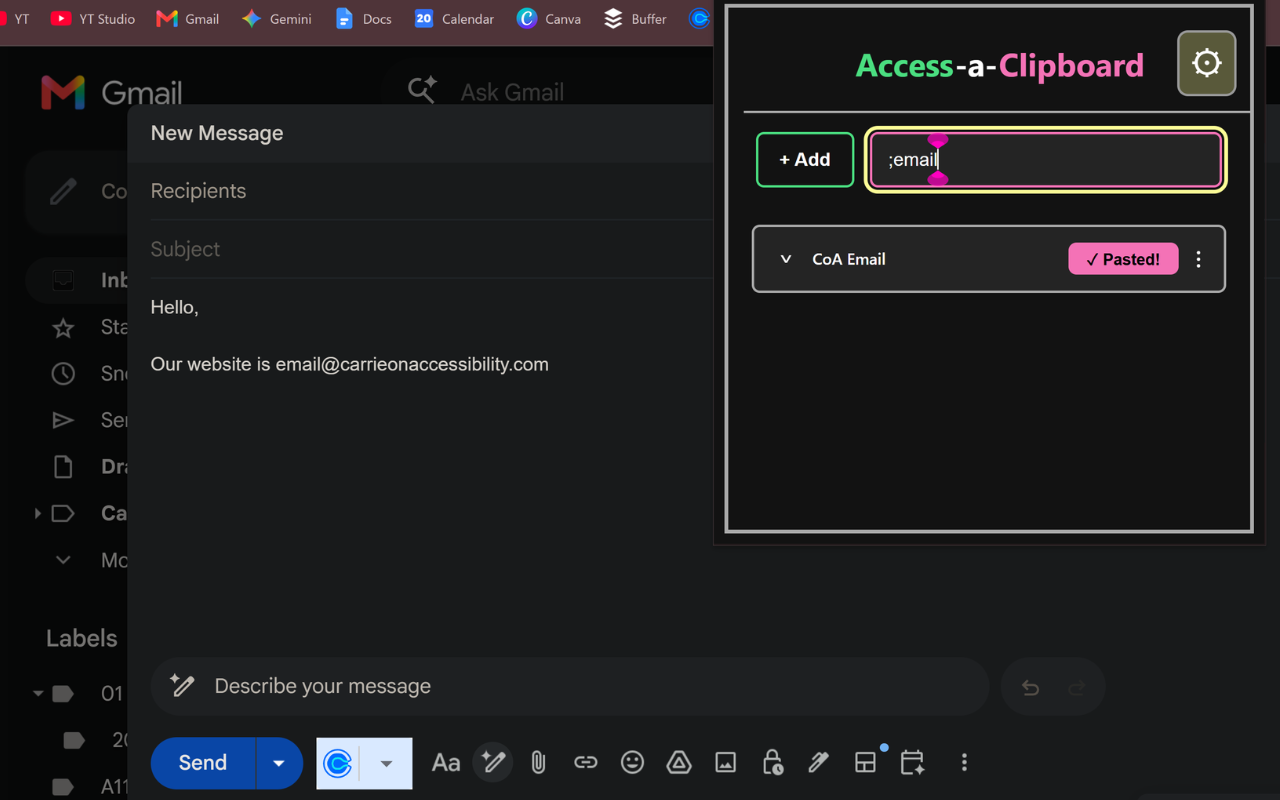
Shortcut Paste
Type a short code and press Enter to paste a saved entry directly into what you're writing.
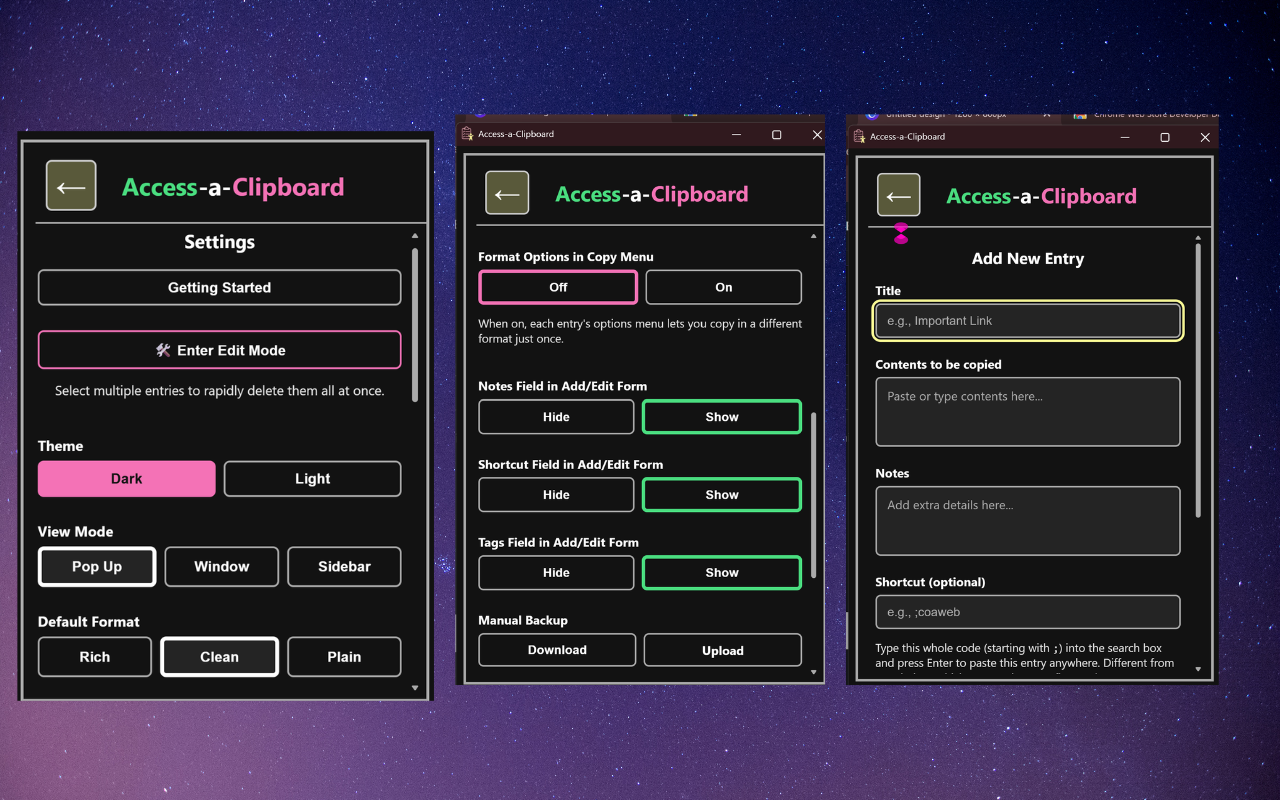
Made To Fit You
Choose your theme, view mode, and default format, and show or hide the fields you don't need.
Screenshot 1 of 6: Access-a-Clipboard popup showing a list of saved entries. Your Saved Entries. See everything you've saved at a glance, each with a one-click Copy button.
Key Features
- Save entries with a title, content, optional notes, tags, and a shortcut code — content can be plain text, or rich content with formatting, links, and images.
- Choose how entries look when viewed or copied: Rich (exactly as pasted), Clean (keeps structure like bold text, links, and tables, but strips out distracting fonts and colors), or Plain (flattened to text). Your original content is always kept safe no matter which format you're viewing with.
- Quick Add — select text on any webpage, right-click, and save it instantly with an automatically generated title. A keyboard shortcut can be assigned too.
- Shortcut Paste — give an entry a short code, then type it into the search box from anywhere and press Enter to paste it directly at your cursor, without the usual copy-and-paste round trip.
- Open the extension as a popup, a standalone window, or in Chrome's side panel — whichever fits how you work.
- Manual backup and restore your entries as a JSON file, with options to overwrite, merge, or add alongside what you already have.
- Edit Mode for quickly selecting and deleting multiple entries at once.
Keyboard Shortcuts
Ctrl+Shift+Space(MacCtrl+Shift+Spaceon Mac) — Open Access-a-ClipboardCtrl+Enter— Save the current entryCtrl+Shift+Enter— Save and start a new entry (Save & Add);— Confirm a typed tag as a pill while adding tags- Type a shortcut code, then
Enter— Paste that entry directly at your cursor, from anywhere - Type
;;codeinstead of;code— Force that one paste to plain text - Arrow keys — Navigate the entry list and Settings groups
Shift+Delete— Delete selected entries while in Edit Mode- Quick Add can also be bound to a keyboard shortcut of your choice at
chrome://extensions/shortcuts— it ships with no default key, since keyboard layouts vary too much to pick one confidently for everyone.
Accessibility
- Every interactive element is a real, keyboard-operable control — no mouse required.
- Every action (copying, saving, deleting, changing a setting) is announced to screen readers through a live region.
- Modals and menus trap focus properly and restore it when closed; arrow keys navigate the entry list and settings groups.
- Dark and light themes are both built around genuinely high-contrast colors for low vision users.
Complete Information
Access-a-Clipboard is a highly accessible clipboard and snippet manager built for Chrome. It exists so that saving, organizing, and reusing content — text, links, images, and formatted rich content — is fast, predictable, and works well with a screen reader, keyboard-only navigation, and high-contrast themes, not just a mouse and a monitor.
Everything you save stays on your own device. Nothing is transmitted to any server, anywhere. Saved entries live in your browser's local extension storage, and a small set of preferences (theme, view mode, formatting defaults) sync across your signed-in Chrome devices using Chrome's own sync storage.
Saving entries
Every entry has a Title, and Contents — the part that gets copied or pasted. Contents can be plain text, or rich content with formatting, links, and images, pasted directly from wherever you copied it. You can optionally add:
- Notes — extra context that isn't part of what gets copied.
- Tags — freeform labels for organizing and searching. Type a word and press
;to add it as a tag. - A Shortcut — a short code like
;sigthat lets you paste that entry anywhere without opening the extension's list at all (see "Shortcut Paste" below).
Each of these three optional fields can be individually hidden from the Add/Edit form in Settings if you don't use it, to keep the form as simple as you want.
Formatting: Rich, Clean, and Plain
Content is always saved at full fidelity — nothing is ever thrown away, no matter what format setting you're using at the time. The Default Format setting in Settings controls how entries are displayed and copied, not what's stored:
- Rich shows and copies exactly what was originally pasted, unchanged.
- Clean keeps structure — bold, italic, links, lists, tables, images, alignment, and font size — but strips out distracting cosmetic noise: font colors, background colors, custom fonts, and any embedded audio or video. This is the default, and it exists because pasting from Word or a random webpage often drags along formatting that clashes wherever it lands next.
- Plain flattens everything down to plain text.
Editing an entry always shows and lets you edit the true original, regardless of your Default Format setting — so switching formats is never destructive, and nothing you've pasted is ever silently lost.
If you want to copy something in a different format just once, without changing your default, turn on Format Options in Copy Menu in Settings — each entry's "⋮" menu then gains one-time "Copy as Rich / Clean / Plain" options.
Copying and pasting
The Copy button (or pressing Enter on a focused entry) copies both a rich (HTML) and a plain-text version to your clipboard simultaneously — whatever app you paste into picks whichever version it understands.
Quick Add
Select text on any webpage, right-click, and choose Add to Access-a-Clipboard to save it instantly, with an automatically generated title (derived from the content, a detected link's domain, or "Image" for image-only selections) — no need to open the extension first. You can also bind a keyboard shortcut for the same action at chrome://extensions/shortcuts (it ships with no default key, since keyboard layouts vary too much to pick one confidently for everyone). Quick Add always captures the rich version of your selection; how it's later displayed or copied still follows your Default Format setting.
Shortcut Paste
Give any entry a Shortcut in its Add/Edit form (it must start with ;, and each one must be unique — the extension will normalize and validate this for you). Then, from anywhere you're typing:
- Open Access-a-Clipboard (
Ctrl+Shift+Space, or your own custom shortcut). The search box is already focused. - Type the shortcut, e.g.
;sig. - Press
Enter.
The entry's content is inserted directly at your cursor, in the page you came from — no manual copy-paste round trip. Typing a double semicolon instead (;;sig) forces that one paste to plain text, regardless of your Default Format setting.
As you type a shortcut-style search, matching entries also show up live in the list below, exactly like a normal search — you can arrow down to one and press Enter there too, and the entry's action button switches from "Copy" to "Paste" for as long as you're in that mode.
Direct paste doesn't work everywhere — some heavily custom editors (Google Docs is the best-known example) render their content in a way that can't be reached this way. When that happens, the content is automatically copied to your clipboard instead, with a message telling you to press Ctrl+V, so you're never left with nothing.
View modes
Settings lets you choose how the extension opens:
- Pop Up — the standard toolbar dropdown.
- Window — opens as its own small, separate window, useful if you want it to stay visible alongside what you're working on.
- Sidebar — opens in Chrome's side panel, staying open as you switch between tabs.
Edit Mode and backups
Enter Edit Mode (in Settings) lets you check multiple entries and delete them all at once, or delete everything. Manual Backup exports all of your entries to a .json file you can keep as a backup, and lets you restore from one later — with a choice to overwrite everything, add the backup's entries as new ones alongside what you already have, or consolidate matching entries together.
Categories
Productivity Extension