
Access-a-Reader

Version 0.14.3 (beta) · Updated ·

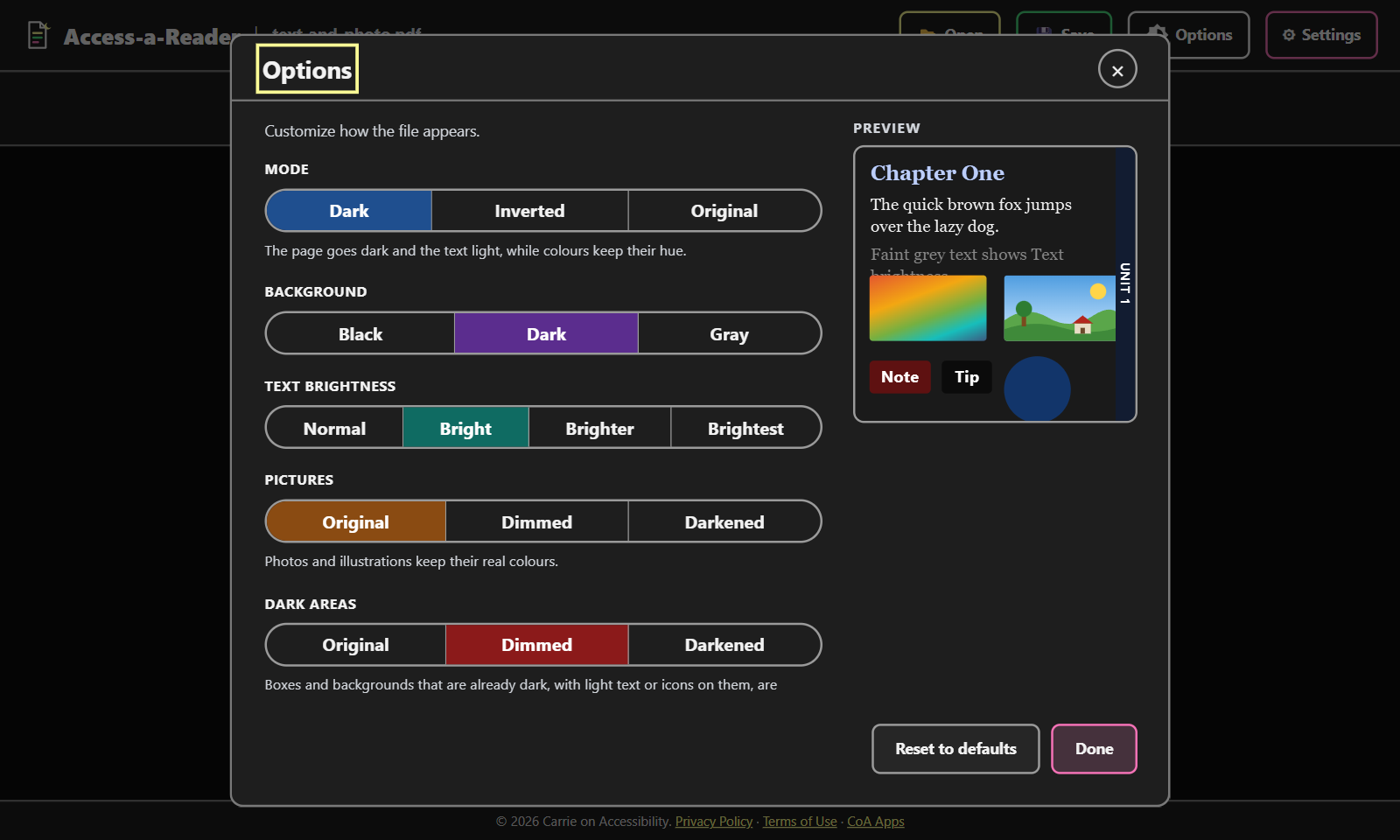
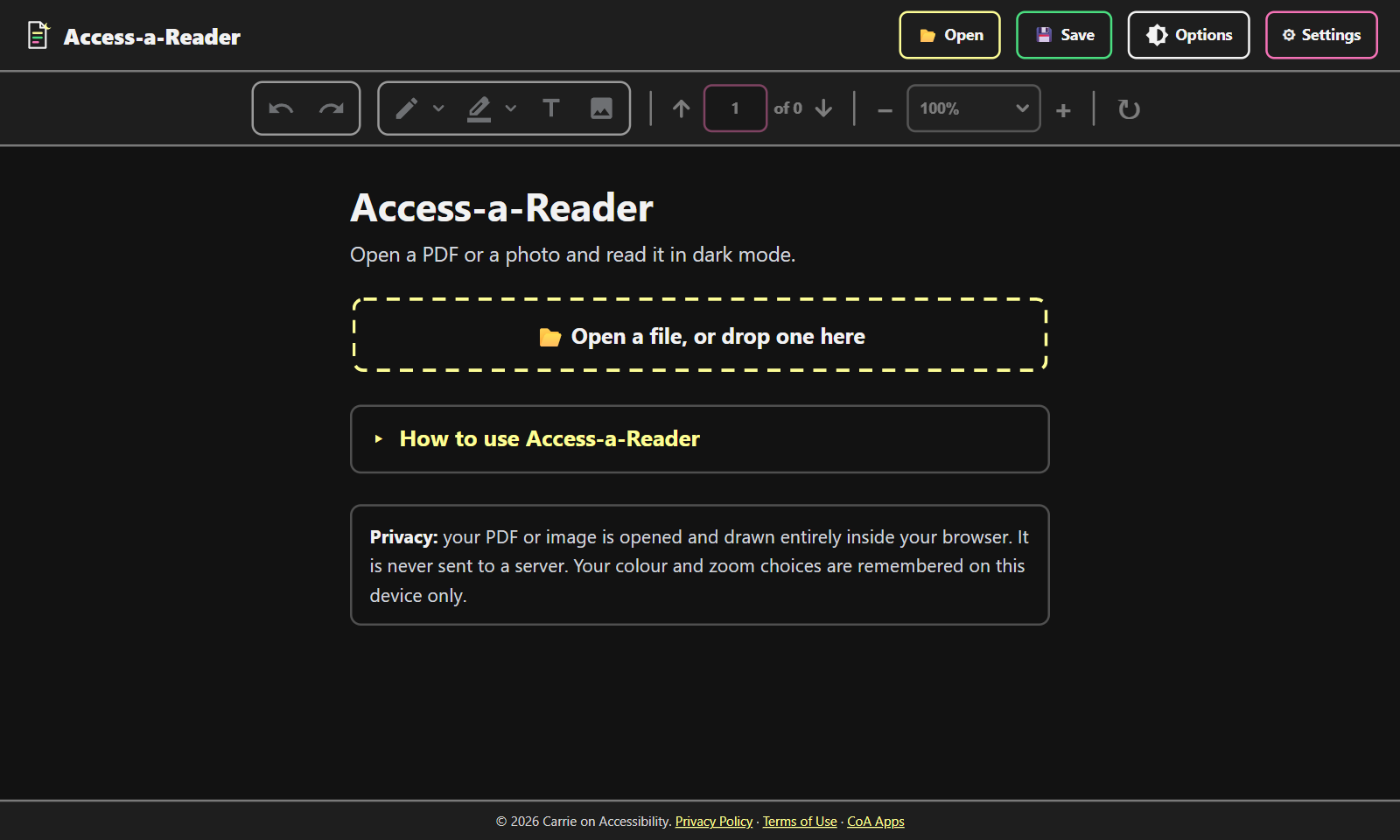
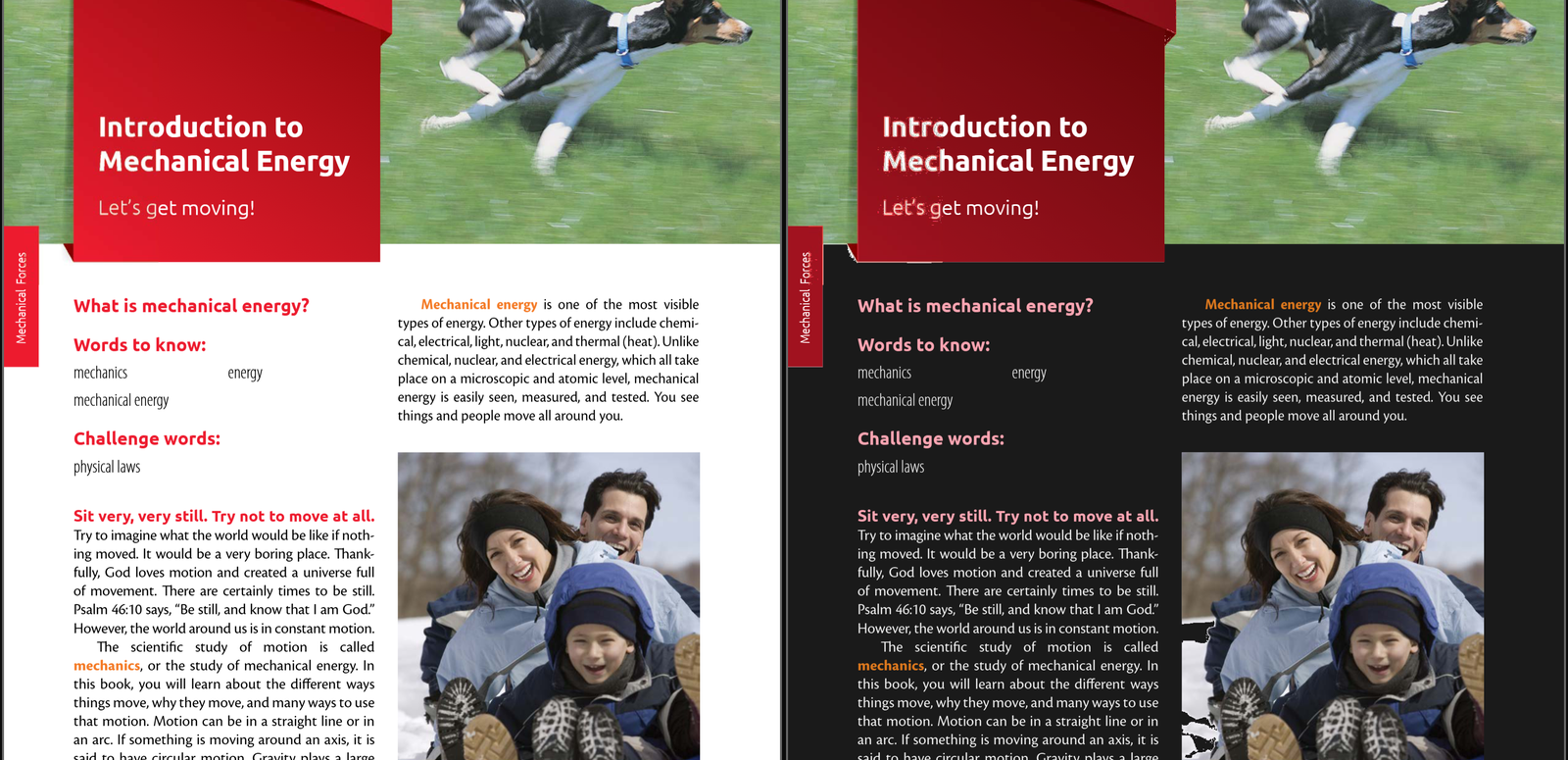
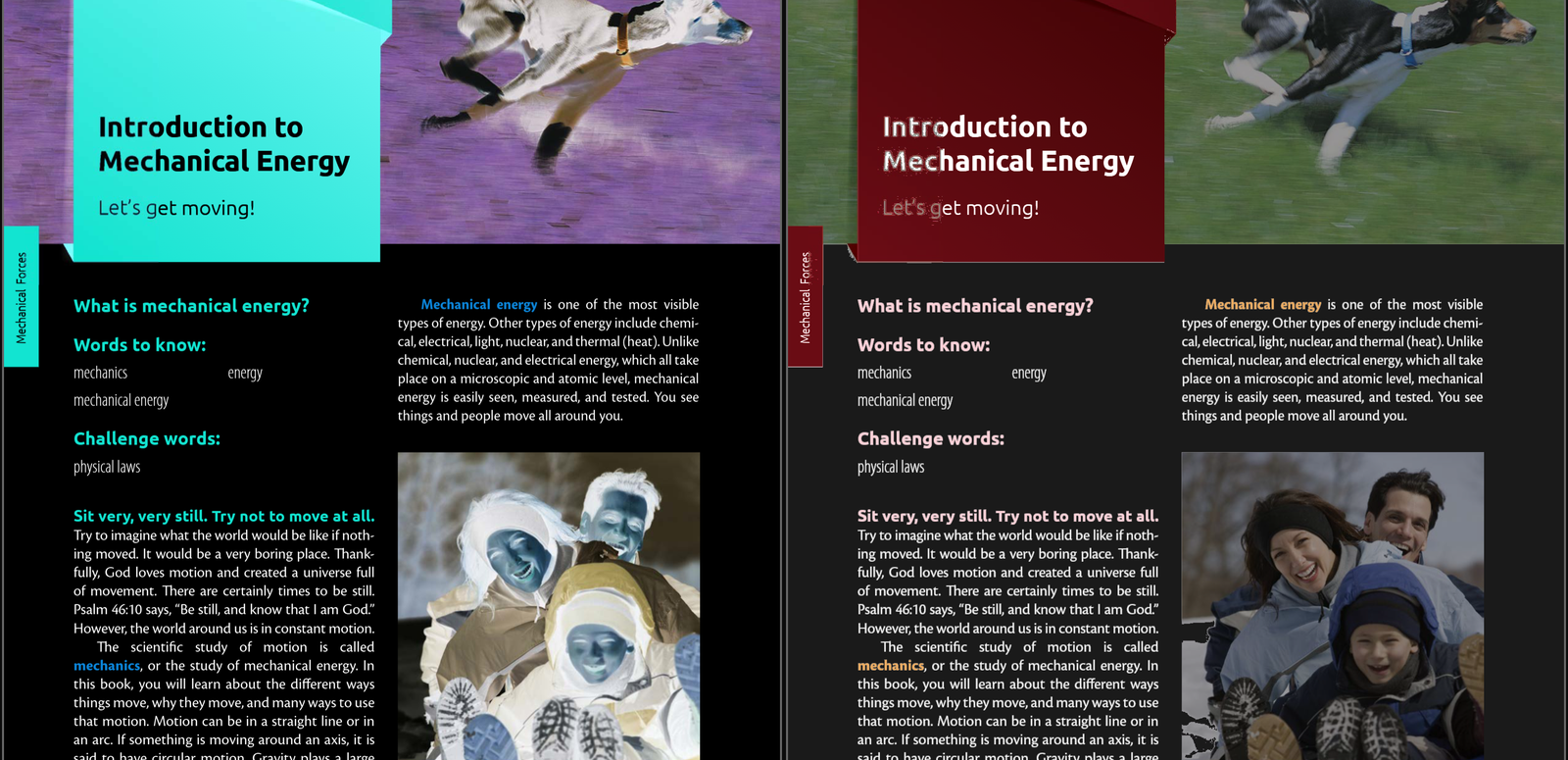
Dark mode for the documents you actually have. Access-a-Reader opens any PDF, a Word, LibreOffice or text file, or a photo or screenshot of a page, and turns it dark the right way: the page goes dark and the text light while colors keep their hue, photos and illustrations stay as they are, and the red or navy boxes with white text keep their white text. Scanned pages are cleaned up and their text is recognized on your device, so screen readers can read them and you can search them. Highlight, draw and add notes, then save the whole thing as a new PDF that looks the same in any viewer. Nothing is uploaded: your file stays on your device.

Open App
Key Features
Accessibility
Categories

Productivity Web App

Change Log

Current: 0.14.3 (beta)

Changes

  • The Library is now called the Local library, since everything in it lives on this device.

Changes

  • US spelling throughout: colors, gray, recognized, canceled.
  • The sidebar titles (Reader options, Contents, Page options) are larger and sit higher; the section headings take the accent color at 75 percent; more room above Reset to defaults.

Changes

  • The heading buttons in the read-aloud box are drawn as ‹H and H›.

New in this version

  • Download a PDF of Reader view. For a document or an article, Save → PDF now offers Download and Print. Download makes the PDF straight away, no print window: the reader's colors edge to edge on every page (no more white below the text), its text size and line spacing, headings, lists, quotes, tables, pictures and working links, as real text a screen reader can read. Print still opens the browser's print window, which keeps the exact font; its pages are now the reader color to the bottom too.
  • Next and previous heading while reading aloud: Alt + Shift + ↓ / ↑, and two new buttons at the ends of the read-aloud box.
  • Save as is a switch: Add to library | PDF | Text, with the text-format menu under Text.

Changes

  • For a document or an article the page arrows and page box leave the toolbar (there is only ever one page).
  • The text-size and zoom menus on the toolbar have the pink border like the page box; sections in the options sidebar sit further apart with a yellow line between them.
  • Ctrl + plus and minus size the text in Reader view even when a menu or button has the focus (it used to zoom the whole page then).
  • Links no longer show a tooltip; the "Ready to read aloud" bar is gone (Play still takes the keyboard).
  • A PDF with generous line spacing reads back as paragraphs, not one paragraph per line, and bullet lines become their own items.

Changes

  • While a picture's description is read aloud, the picture itself gets the highlight outline.
  • A picture's description now says "Alt text:" rather than "Picture:".
  • Captions and alt text take the heading color at 80 percent.
  • On/Off and Show/Hide switches read Off | On and Hide | Show, with "on" on the right.

Fixes

  • Reading a picture's description blacked the screen out: the hidden description was placed against the page rather than the reading column, which stretched the page and scrolled the whole app off the top. It also left an empty black band below the app. Both gone.

New in this version

  • YouTube videos in articles. A video player in an article becomes one link: the video's thumbnail with "Watch on YouTube: title" under it. A screen reader meets a single link; it opens the video on YouTube in a new tab. The title comes from the page, or from YouTube when the page only says "YouTube video player". With Pictures set to Hide, the thumbnail goes and the link stays. Needs the extension at 0.3.2 or later for players that sit inside a page's own boxes.

New in this version

  • Save as: Library, PDF or Text. Choose Text and a second menu offers Word (.docx), Rich text (.rtf), Web page (.html), Markdown (.md) or Plain text (.txt). Markdown and plain text are new.
  • Picture descriptions. Reader options has "Show alt text below pictures" (Page and spacing) and "Read picture descriptions" (Read aloud, on by default): a picture's description, when the file has one, appears as "Picture: …" under it and is read in its turn.
  • Ctrl + plus and Ctrl + minus size the text in Reader view (they zoomed the whole page before).
  • Quotes carry a line in the heading color at half strength; an article's see-through pictures sit on a gray ground.

Fixes

  • The Contents list now marks the section you are actually in while you read or scroll, and the one you chose from it; before, it only followed the page number.
  • The Contents button has a border all the way round in every state.
  • An article opened by the extension raced silently to its end: the browser refuses to read aloud until the page has had a click or a key, and every sentence was being skipped as "failed". Now the place stays at the title, a note says "Ready to read aloud: press Play, or Shift + Space", and Play has the keyboard, so one press starts it from the top.

New in this version

  • Save as is a menu: Library, PDF, Word (.docx), Rich text (.rtf) or Web page (.html), with the best one for the open file already chosen. Every format is offered whichever view you are in.
  • Tables come through as real tables in Word, rich text and web pages. Pictures are included in Word and web pages when their bytes are at hand (a Word or LibreOffice file's); an article's pictures are linked from a web page. A note says when pictures cannot be included.
  • Scans and photos can be saved as text too: their pages are read by OCR first. The dialog says that OCR alone can come out jumbled and offers a Gemini key; with AI help on, a box tidies the whole file first.

Fixes

  • Nothing else changed.

New in this version

  • The Library. Press Save and choose Library to keep a copy of the open file or article on this device; it appears on the home page under Recent files, with filters (PDFs, Documents, Pictures, Articles) and a search box, and opens again with nothing to find. The Library button beside Open brings the home page up over the open file (Back returns to it) with the keyboard on the Library heading.
  • Save as Word. Save now offers Library, PDF or Word: a .docx of the text as Reader view shows it (headings, paragraphs, lists, quotes, links) for articles, documents and text PDFs.
  • Articles join Recent files, with their text kept, so a page read through the extension can be opened again offline.
  • Links and articles in your account (Settings → Document): when it is on and you are signed in, the articles in your Library follow you to your other devices. Files stay on the device they were saved on.

Fixes

  • Nothing else changed.

New in this version

  • Web articles, better. The article's title is the heading of the column, with the site, the writer and the date under it when the page states them; the header shows "[Site] Article", and a click on it gives the title and the link, with Open and Copy buttons. The page's own pictures come along (never adverts), and reading starts from the title. The extension (0.3.1) opens the article in its own window.
  • Pictures on or off in Reader options.
  • Table lines in Reader view are the text color at half strength.

Fixes

  • Reading aloud from the top of a file started at the first paragraph in view rather than the very first one.

New in this version

  • Contents in the sidebar. The Contents button now stands beside Page | Reader and opens the sidebar (a dialog on phones) with the list, under a Contents heading; the entry for the page you are on is marked as you read. The levels are indented more.
  • Reading aloud follows you. Move while it reads (the page box, the arrows, J and L, a link, a contents entry) and the voice carries on from there; paused, the next play starts from the new place.
  • Five more color presets: Yellow on black, White on navy, Gray on black (low glare), Black on cream, Amber on black.
  • In the Gemini key dialog the "How to get a free key" steps fold away once you have a key.

Fixes

  • In Reader view the page arrows stayed grayed after typing a page number, and the keyboard stayed in the page box.

New in this version

  • Read any web page aloud. With the Open in Access-a-Reader browser extension (0.3.0), press Alt + Shift + L on a web page, right-click it, or use the extension's button: the article comes into Reader view and reading starts. Select some text first to read just that.
  • Several files at once. Choose or drop more than one PDF or document and each opens in its own Access-a-Reader window (the browser lets one window open by itself; a bar offers a button for the rest).
  • Reader options: Colors is now Dark, Light, Preset or Custom in a two-by-two block; a Boldness setting (Normal, Semi-bold, Bold) sits under Font; the text-size dropdown is on the toolbar too, between A− and A+.
  • Dropdown lists: the row under the pointer or the arrow keys is white on green; the chosen one is simply bold.
  • Every tooltip in the app is now the app's own (the color swatches, links, the file name and the rest), not the browser's slow one.
  • The "Page 3" label sits above each page now, not on it.

Fixes

  • Save as a preset is grayed until the set has a name.
  • The "This file is a scan" warning stays away when AI help is on with a key, since Gemini checks the recognized text.

New in this version

  • Contents. The list icon beside Page | Reader opens the file's contents: its own bookmarks when it has them, otherwise the headings found on every page (or in a Word file). Choose an entry to go there; arrow keys move through the list. A scanned file shows its contents once its text has been read.
  • AI help (Google Gemini). With your own free Gemini key (Settings → Document, with step-by-step instructions), the pages you read in Reader view are checked by Gemini against the picture of the page: OCR mistakes corrected, text put in reading order, headings recognized, and Contents built from them. It works on ordinary PDFs as well as scans. You choose per file: tidy pages as you read, the whole file now (with a note about how many pages that sends), or not for this file; Settings also has "Tidy this page" and "Tidy the whole file". The key stays on your device. When OCR runs and there is no key yet, the app offers this once, with a "don't ask again" box.
  • Save a Word, LibreOffice or text file as a PDF that looks like Reader view: the colors, text size, spacing and font. Save opens your browser's print window; choose "Save as PDF" there.
  • J and L turn the pages (J back, L forward, like a video player). N and P still work.
  • The keyboard shortcuts list is grouped under headings.

Fixes

  • Nothing else changed.

New in this version

  • Reader options, regrouped. Three headings: Text and colors (text size, colors, font), Page and spacing (page width, line spacing, page numbers) and Read aloud (voice, speed, whether the page follows the reading, and a Reading shortcuts button).
  • Reader colors are the reader's own. Page options (Dark, Inverted, Original) no longer touch Reader view. Colors are Dark, Light or Other. Other offers presets — Default, White on black, Black on white, Cyan on black, Black on cyan, Yellow on blue, Blue on yellow, Green on black — or Custom, where each of the four colors (background, text, headings, highlight) opens the same swatch panel as the markup tools. Save your own set with a name and it joins the preset list as one of My presets.
  • Text size is a dropdown (100% to 500%) beside A− and A+, so a big change is one pick.
  • Reading speed and "Keep the paragraph being read in view" are in Reader options. Turn the second one off to scroll elsewhere while it reads.
  • Dropdown lists show the chosen row white on green, like the play button.

Fixes

  • Closing a dialog with Escape also closed the options sidebar.

New in this version

  • Reader colors: Dark, Light or Custom. Reader options has a Colors setting. Dark follows Page options as before, Light is black on white, and Custom opens four color pickers: background, text, headings and the highlight used for the paragraph being read aloud. A note appears if the colors you pick are hard to read together.
  • In Reader view the + and − keys size the text (they zoomed the hidden pages before).

Fixes

  • A sweep of the whole app in the browser: every control, dialog, shortcut and file type was exercised. Two wording slips were corrected (the Page options reset message and the note for a share that had nothing readable in it).

New in this version

  • Read aloud has its own box at the start of the toolbar in Reader view: a bigger green play button, the paragraph and speed buttons, and a gear at the end that opens a menu for the reading voice and a speed slider.
  • Every toolbar icon names itself. Rest the pointer on an icon for half a second and a small label appears, with its keyboard shortcut where it has one; it goes when you move on or click. The same label appears when you reach an icon with the keyboard.
  • In Reader view the text-size buttons now sit between two bars, like the other groups.

Fixes

  • Read aloud skipped bulleted and numbered lists in Word, LibreOffice and text files. Every item is read now, and the Previous and Next paragraph buttons step through them.
  • Lines typed with a line break inside one paragraph (an address, a list of links) were read as one long block. Each line is read, and outlined, on its own.
  • After a Word, LibreOffice or text file, a PDF opened in Page view with the reading buttons still on the toolbar.

New in this version

  • Word, LibreOffice and text files. Open .docx, .odt, .rtf and .txt files: they go straight into Reader view, in your colors, size and font, with headings, lists, links and pictures kept. Page view is for PDFs and pictures, so the Page button says so for these.
  • Read aloud. In Reader view, the browser's own voices read the file a paragraph at a time: press the play button on the toolbar or Shift + Space, Shift + Down and Shift + Up for the next and previous paragraph, Alt + Shift + plus and minus for the speed. The paragraph being read is outlined and kept in view, and a click on any paragraph carries on from there. Reader options has a Reading voice setting; Edge has the most natural voices.
  • Links work. A link in a PDF is a real link in both views: to a web address (opens in a new tab) or to another page of the same file.
  • Page numbers on the pages. Every page in Page view carries a small "Page 3" tag at its top left corner.
  • Text size on the toolbar. In Reader view the zoom buttons give way to A− / A+ for the text size, and the read-aloud buttons sit beside them.
  • Every file opens showing a whole page. The zoom you choose after that lasts for the file.
  • Find is Alt + Shift + F. Ctrl + F still works when the page has the keyboard, but the browser's own find takes it otherwise.

Fixes

  • Find had stopped working in the version before this one (its code was lost in a clean-up). It is back.

New in this version

  • Reader view. Choose Page or Reader at the left of the toolbar. Reader view shows the whole file as one column of text (the PDF's own text, or the text recognized from a scan) in the colors of Page options, with your own Text size (up to 500%), Line spacing, Page width (on a phone too), Font (System, Atkinson Hyperlegible or Serif) and Page marks. Words split across lines or pages are joined back up. A scanned file gets a note that recognized text can have mistakes.
  • Options in a sidebar. On a computer, the arrow on Page or Reader opens that view's options in a sidebar on the left; press C to open or close it. On a phone the same options open as a dialog. The Options dialog is now called Page options.
  • Find. The magnifier next to the page number, or Ctrl + F, searches the file's text in Page view and Reader view alike: every match is marked, the current one in yellow, with arrows to move between them.
  • Hide blank pages in Page options; page numbers still match the book.
  • Save all pages or a range, such as 1-3, 7.
  • Made for phones. A one-line header, a toolbar that scrolls sideways, floating menus, pinch to zoom, a taller Open button, the Back button closes dialogs, and Add an image sits after the last page.
  • Share to Access-a-Reader on Android. Once installed, it appears in the Share menu for PDFs and photos.
  • Open PDFs from Chrome or Edge. Five steps, one at a time (Settings, Help, and on the start screen): an Install button, an Open Windows Default apps button, a sample PDF to practice on, and only the lines for the browser you are using. With the Open in Access-a-Reader browser extension, its setup page is the guide and this app only needs one press to install.
  • Tooltips say why. A grayed button explains itself when you point at it or move to it with the keyboard.
  • Keyboard. S opens Settings, C the sidebar, Ctrl + F Find; Esc closes Find, then the sidebar. R no longer rotates.
  • The app's own icon next to PDFs when Access-a-Reader is installed from Edge.

Fixes

  • Pinch to zoom and dragging on phones are smoother, and on touch devices the dark look is drawn straight into the page.
  • The edit panel's slider no longer deselects the mark it is editing.
  • The footer scrolls with the pages instead of sticking to the bottom of the screen.
  • Clearing the recent files list says so at the top of the start screen.
  • The text-recognition status line shows only on a computer.
  • Quieter lines around the toolbar and a lighter toolbar background.
  • Dialogs stay inside the screen on a phone at the Large size; Reset and Done share one line.

New in this version

  • Open any PDF in dark mode. The page goes dark and the text light, while colors keep their hue.
  • Pictures stay pictures. Photos and illustrations keep their real colors (or can be dimmed, or darkened further), while textures, paper backgrounds and decorations go dark with the page.
  • Three ways to color a page: Dark, Inverted (a plain negative), and Original (the file untouched), with a live preview.
  • Dark areas stay as they are. A red, navy or black box with white text or icons keeps its light text instead of being flipped: Original, Dimmed or Darkened (the box darker, the text untouched).
  • Background shade. Black, Dark, or Gray pages in Dark mode.
  • Text brightness. Four levels for PDFs whose text is faint gray, colors kept; Brightest takes text close to white.
  • Images of pages. Open a photo or screenshot (JPEG, PNG, GIF, WebP, BMP, AVIF), or several at once as one document with a page each. They are treated like scanned pages.
  • Scanned pages, sharper. Options has a Scanned pages setting: Sharper firms up soft scans, Crisp also pushes the contrast so text is solid and paper clean.
  • Scanned pages are read for you. A scan gets its paper leveled, its illustrations kept in color, and its text recognized on your device (nothing uploaded) so NVDA can read it and you can select and search it.
  • Blank pages say so. A page with nothing on it is grayed out and labeled "Blank page", and keeps its place so page numbers match the book.
  • Zoom and fit. Opens at 100%; 50% to 400%, fit to width, whole page, and rotate.
  • Built for screen readers. Every page is a labeled region with real text inside it.
  • Install as an app. Works offline once installed, and on a computer it can open PDFs directly.
  • Save. Saves a new PDF that looks the way the pages look now: dark mode, colors, scan clean-up and markup baked in, with the text kept underneath for search and screen readers.
  • Annotations. Pen, highlighter, text notes and stamps (a picture placed on the page, resizable), each with its own color, thickness, opacity or size, and a little toolbar over whatever is selected. They are kept on this device and come back when the same file is opened; writing them into the PDF comes with Save.
  • Sign in to keep your settings. With a CoA Apps account, your page options, zoom and markup colors follow you to your other devices. Documents and markup stay on each device.
  • Recent files. The last twenty PDFs and twenty images you opened are listed on the start screen (Chrome and Edge), one click to reopen.

Fixes

  • First release, nothing to fix yet.