
Falling Words
Type it before it lands. Falling Words is a high-contrast, low vision, screen reader, and keyboard accessible typing game — race each word to the bottom across four difficulty modes from single letters to long words, six speeds, full text-to-speech, and sound cues for every keystroke.
Play Now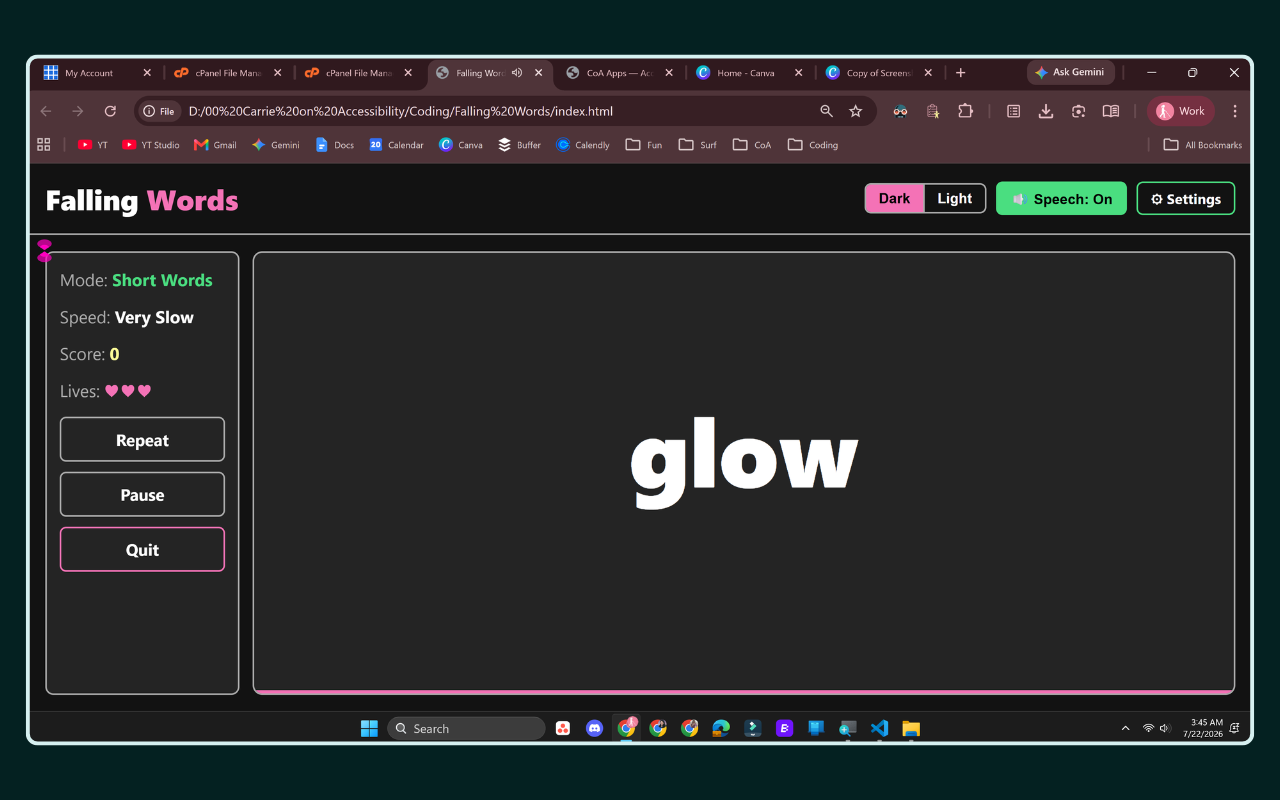
Type Before It Lands
A word falls from the top of the canvas. Type it correctly before it reaches the bottom — letters turn green as you type them, and pink for a moment if you slip up.
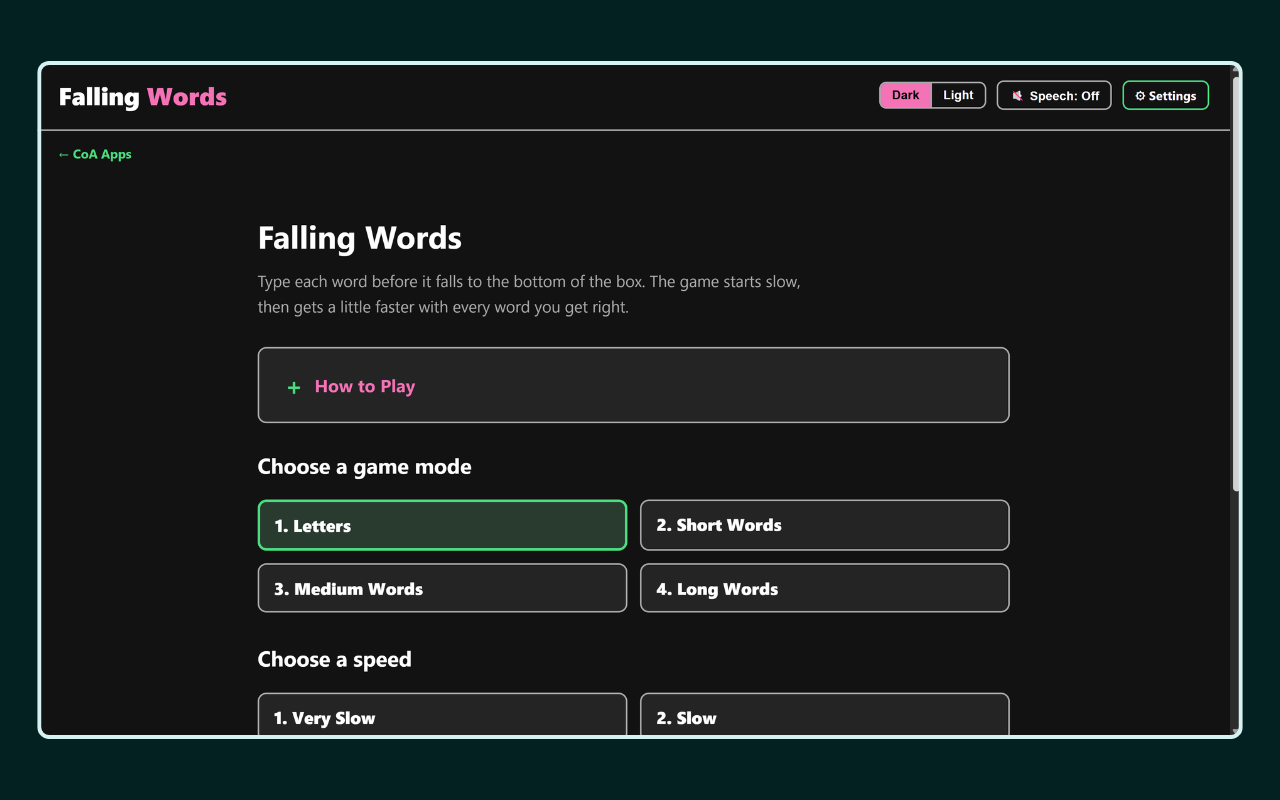
Choose Your Mode
Four game modes, from single letters up to long words — pick the one that matches your typing level.
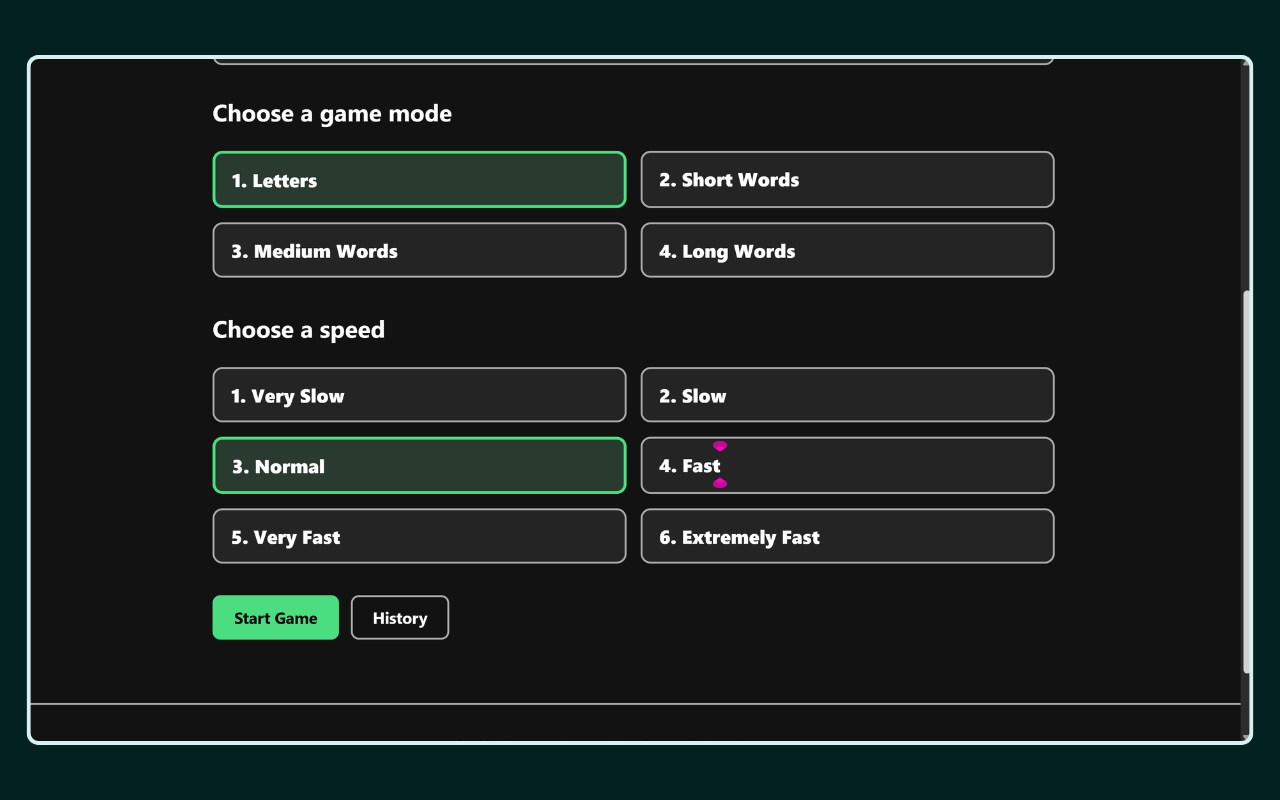
Choose Your Speed
Six speeds from Very Slow to Extremely Fast, mixed and matched independently from mode.
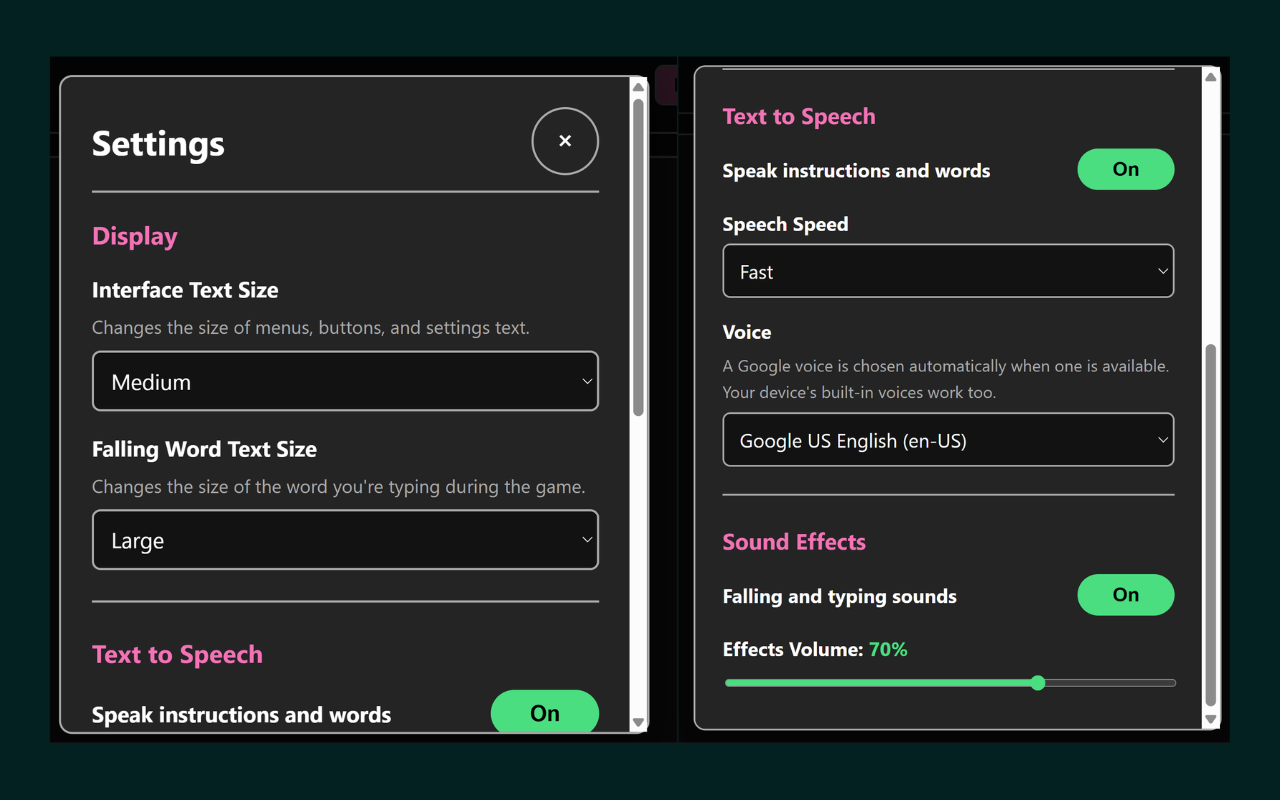
Full Settings
Adjust text-to-speech voice and speed, sound effects volume, and interface / falling-word text sizes independently.
Screenshot 1 of 4: Falling Words gameplay screen showing the sidebar with Mode: Short Words, Speed: Very Slow, Score: 0, and three hearts for Lives, next to Repeat, Pause, and Quit buttons, with the word 'glow' falling in the large canvas area. Type Before It Lands. A word falls from the top of the canvas. Type it correctly before it reaches the bottom — letters turn green as you type them, and pink for a moment if you slip up.
How to Play
- Pick a game mode — Letters, Short Words, Medium Words, or Long Words, spanning a 1st through 6th grade reading level — and a speed from Very Slow to Extremely Fast.
- A word appears at the top of the canvas and starts falling. Type it before it reaches the bottom.
- Letters you've typed correctly turn green. A wrong key flashes the word pink for a moment — just try again.
- Press
Ctrlany time to hear the word again. PressRight Arrowto hear the next letter, or press it twice quickly to have the rest of the word spelled out. - You have 3 lives — letting a word reach the bottom costs one life, and the round ends when you run out.
- Full settings for text-to-speech voice and speed, sound effects volume, and independent interface / falling-word text sizes — plus a Keyboard Shortcuts reference, both available from the pause menu.
Accessibility
- Every screen is fully keyboard-operable, with arrow-key navigation between controls anywhere in the app.
- Every button, toggle, and selection is announced through built-in text-to-speech.
- Falling word progress uses color, letter state changes, and distinct sound effects, including a tone that drops in pitch as a word nears the bottom.
- Text-to-speech and sound effects can each be turned off independently.
- Interface and falling-word text size are independently adjustable and can be made very large, for low vision players.
Categories
Educational Typing